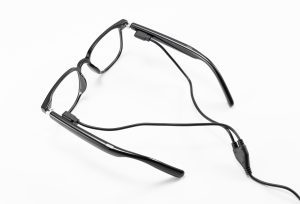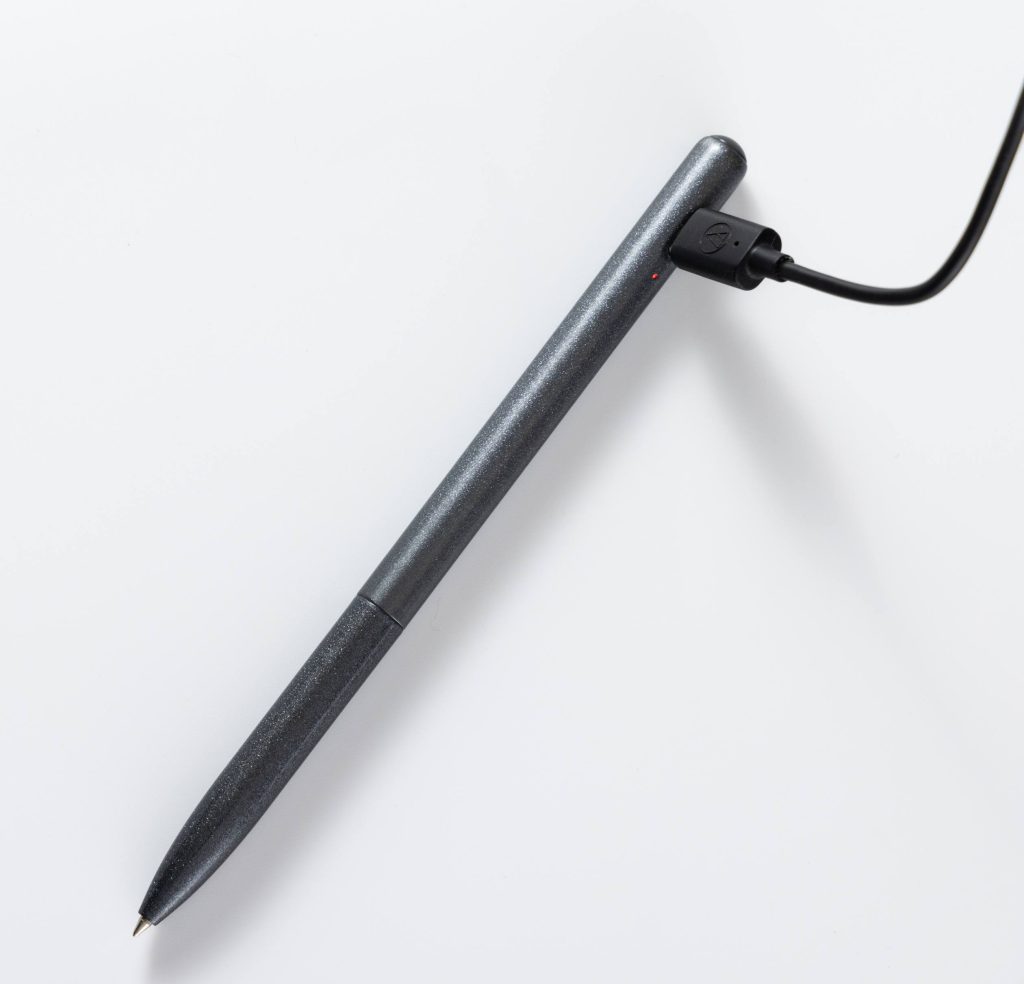
Not every stylus pen activates the same way. Pens fall into two broad families: passive capacitive stylus pens that work the instant they touch a capacitive screen, and active digital pens that carry their own electronics and must be charged, switched on, and sometimes paired before they respond. In practice, the most common reason a touch pen appears “dead” is that the user never confirmed which family their pen belongs to.
This guide walks through the complete activation workflow for every type of stylus pen — identifying the model, supplying power, turning it on, pairing over Bluetooth only when required, and testing it on screen — plus a troubleshooting checklist for the cases where nothing seems to work. If you are setting up a modern ai pen — often marketed as an AI pencil or smart pencil — with translation and recording features, the same five steps apply.
Key Takeaways
- Identify the pen type first. Passive universal stylus pens need no setup and work straight out of the box, while active active stylus pens usually need charging before first use.
- Fully charge a rechargeable stylus pen and confirm the battery level on its LED indicator; if it runs on a disposable battery, replace it once power drops.
- Press and hold the power button to switch on an active smart pen — some newer models also wake automatically when tapped or picked up.
- Pair over Bluetooth only when the manual explicitly requires it. Passive capacitive stylus pens never need a Bluetooth connection.
- Once set up, test pressure sensitivity, tilt detection, and responsiveness across the whole screen. If the pen still fails to register input, work through the troubleshooting checklist below.
Identify Your Stylus Pen Type
Knowing which type of pen you own saves you from wasting time on unnecessary setup. The two families behave very differently, so this is always the first step.
Universal Styluses vs. Active Styluses
Universal passive capacitive styluses mimic the electrical signal of a fingertip. Their conductive rubber, fiber, or disc tip registers taps, scrolling, signatures, and basic note-taking by interacting with the screen’s electrostatic field. They need no battery, no power switch, and no pairing. They are inexpensive and compatible with almost every capacitive touchscreen, but they lack pressure sensitivity, tilt detection, and palm rejection, and their thicker tips limit precision in detailed drawing.
Active styluses contain internal circuitry that communicates with the device’s digitizer layer. That is what unlocks pressure sensitivity, tilt detection, and palm rejection — features that matter for handwriting, sketching, and digital illustration. Many active pens use Bluetooth to support programmable shortcut buttons, though some proprietary models (certain iPad pens, for example) operate without any pairing at all. Modern AI pens and smart pens sit at the top of this category: on top of writing, they add translation, voice recording, and AI assistance.
The table below summarises the key differences:
| Feature | Universal Capacitive Stylus | Active Stylus |
|---|---|---|
| Interaction | Emulates a fingertip | Uses built-in electronics |
| Device compatibility | Works with capacitive touchscreens | Needs compatible device support |
| Pairing | No pairing required | May require pairing |
| Charging | No charging required | Needs battery |
| Pressure sensitivity | None | Supports pressure levels |
| Palm rejection | No routine | Often supports palm rejection |
| Cost | Generally inexpensive | Typically pricier |
Find the Power Button or Touch Tip
Examine the barrel of the pen. If it has no power button, no charging port, and a simple conductive tip, it is a passive capacitive stylus pen — it activates the moment it touches glass.
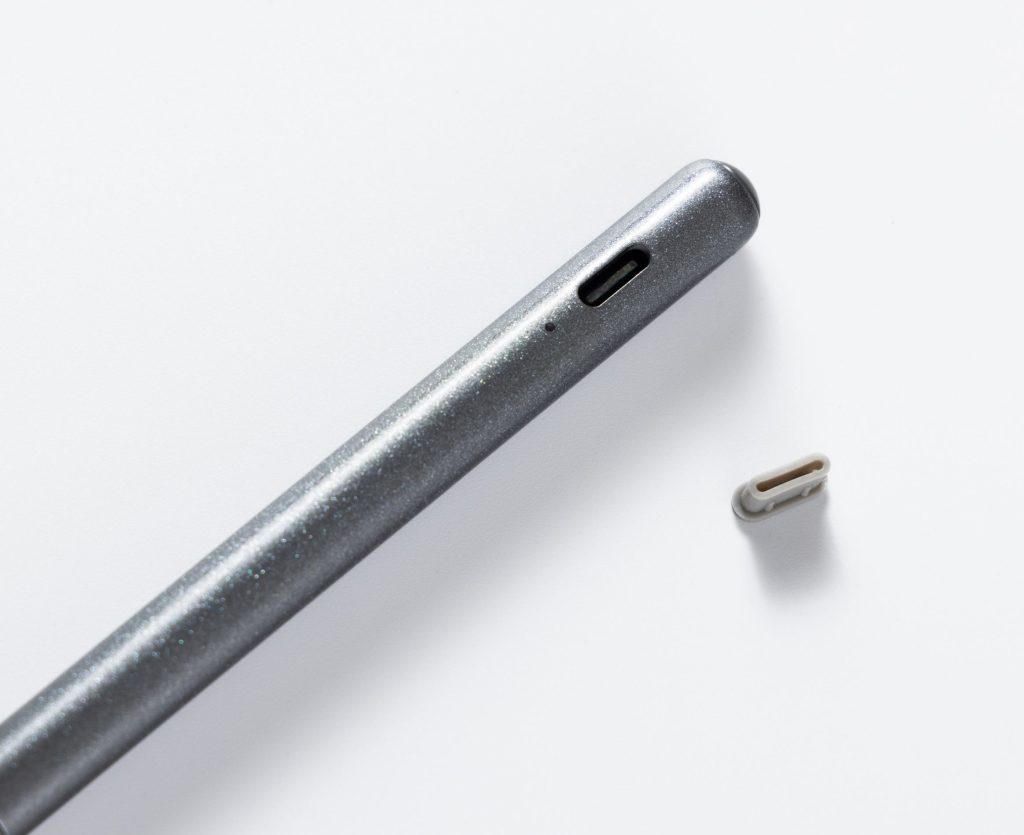
An active stylus pen will show at least one of these features: a power button, a USB-C charging port, a replaceable battery cap, or an LED indicator. Some active pens also support hover, letting you see an on-screen cursor float just above the display before the tip makes contact. In drawing apps, active pens change line thickness as you vary pressure, while passive pens always draw lines of uniform thickness.
Charging the Stylus or Installing Batteries
Active styluses require power before they can connect to a device, whereas universal passive styluses do not. Active styluses typically draw power from either a built-in rechargeable battery or a disposable battery. Many modern active styluses feature a built-in rechargeable battery, while some models rely on replaceable batteries when power runs low.
Rechargeable Stylus: Charging
Locate the USB-C charging port on the pen — most modern rechargeable stylus pens use this standard connector. Some high-end models support magnetic wireless charging, snapping directly onto the side of a compatible tablet like a magnetic pen. Charging time varies with battery capacity and charging method.
An LED indicator shows real-time charging status:
| Indicator Color | Battery Level During Charging |
|---|---|
| Red | Lower than 10% |
| Yellow | Between 10% and 99% |
| Green | Fully charged |
A red light means battery charge sits below 10%. Yellow indicates 10–99% charge. Green means fully charged. You can check the exact battery percentage in your device Settings. Swipe down on your home screen and look for the stylus pen menu, where you can view the remaining power. Some phones will pop up a battery status prompt when you plug the stylus pen’s USB-C cable into the phone’s charging port.
Battery-Powered Stylus: Insert New Batteries
Some digital stylus pens do not have built-in rechargeable cells and rely entirely on AAAA disposable batteries. These small cells measure 8.3 mm wide and 42.5 mm tall, deliver a nominal 1.50 V, and hold roughly 500 to 600 mAh. They operate reliably within 0°C to 60°C.
| Attribute | Detail |
|---|---|
| Nominal Voltage | 1.50 Volts |
| Capacity | ≈ 500–600 mAh |
| Diameter | 8.3 mm |
| Height | 42.5 mm |
| Chemistry | Alkaline |
The battery compartment of this stylus pen is usually at the top end or under a cap near the tip. Open the compartment and align the battery’s positive and negative terminals correctly. Slide the AAAA battery into place and close the cap. Always read the user manual before switching battery types. Some devices accept multiple battery sizes, while others require an exact match.
Turn On Your Active Stylus Pen
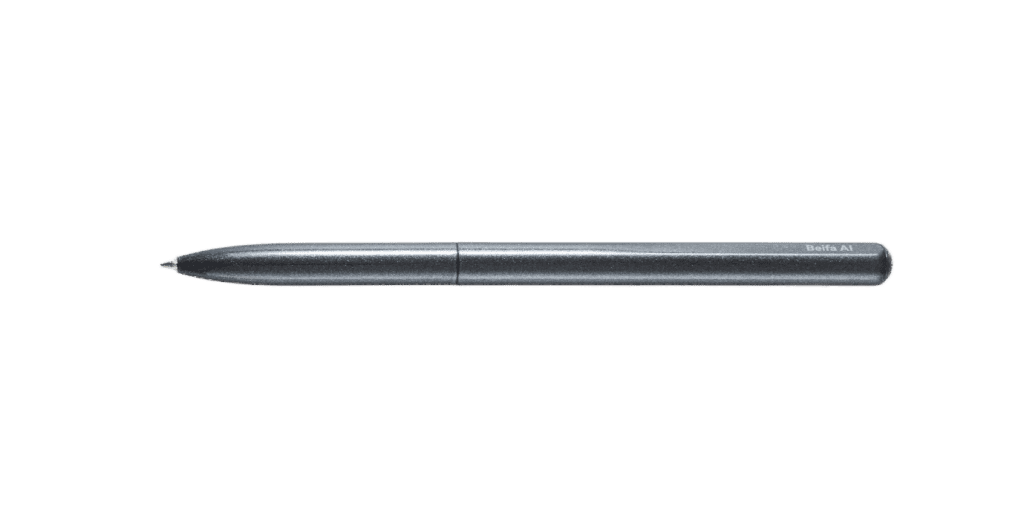
Once powered, active stylus pens need to be turned on. This step does not apply to passive stylus pens, which activate the moment the tip touches the screen.
Press and hold the power button.
Locate the power button on the stylus body (usually found on the side, near the cap or the tip) and press and hold it for 2–3 seconds. For most active styluses, a quick tap is insufficient to activate the device; the internal chip requires a sustained press to wake it from sleep mode.
Some newer active styluses use touch-sensitive controls instead of physical buttons, allowing them to wake up with a simple double-tap on the cap. Other models feature motion sensors that automatically power on the stylus when it is picked up. Be sure to consult the official user manual to confirm the specific wake-up method for your stylus.
For paired devices, some styluses display an on-screen notification upon activation. If there is no response after pressing and holding the button, the battery may be depleted; please charge the device or replace the battery and try again.
Read the Indicator Light
Most active stylus pens include a small LED next to the power button to show operational status.
| Light Behavior | What It Means |
|---|---|
| Solid green | The stylus is active and ready |
| Blinking blue | Pairing mode is on |
| Solid red | Battery is low |
| Blinking red | Battery is critically low |
| No light | Power is off or the battery is dead |
A solid green light indicates that the stylus is active and ready for input, while a flashing blue light signifies that it is awaiting Bluetooth pairing. A solid red light warns of low battery, indicating that the device needs to be charged soon. If the indicator light is completely off, it usually means the power is turned off or the battery is depleted.
Some active styluses use different color-coding schemes; for instance, a purple light might indicate charging, while a white light could signal standby mode. The flashing pattern is often more critical than the color itself: a steady light indicates readiness, whereas a flashing light signals that an action is required.
Universal styluses do not require these steps. They lack LED indicators and do not have distinct on/off states—you can simply pick them up and start writing. For active styluses, the LED indicator serves as a convenient status check; a quick glance confirms whether the stylus is ready to use or needs charging. This simple feature effectively saves time when taking notes or drawing. Once the light turns green, you can proceed with your task.
Pair via Bluetooth Settings
Open Settings and Select Your Stylus
An active stylus with Bluetooth functionality must be paired with your tablet or laptop via the system settings menu. Open the “Settings” app on your device, locate the Bluetooth option, and turn it on. The device will scan for nearby accessories within a few seconds.
First, put the stylus into pairing mode. Press and hold the power button until the indicator light flashes blue. The stylus should then appear in the “Available devices” list, typically identified by its brand or model name (e.g., “Active Pen 2”). Tap the name to initiate the connection; some tablets may display a confirmation prompt. Most stylus models use a simple default pairing code or require no code at all. After a few seconds, the connection status will change to “Connected.” The entire process usually takes less than a minute.
If the stylus does not appear in the list, try turning Bluetooth off and back on, moving the stylus closer to the device, and attempting the process again. This often resolves most connection issues.
Once successfully paired, many tablets unlock additional control options. Within the same menu, you can adjust pressure sensitivity, assign functions to the stylus’s shortcut buttons, or enable palm rejection. The stylus will remain paired until you manually remove it. Simply touch the screen to verify that the connection is working correctly. Many users appreciate this automatic reconnection feature.
Models That Skip Pairing
Not all active stylus pens require Bluetooth. Many proprietary active pens communicate directly with the tablet’s digitizer hardware without Bluetooth pairing. Passive capacitive pens also work without Bluetooth.
A passive universal stylus pen acts just like your finger. Its conductive tip alters the screen’s electric field and registers touch instantly. It works across iPads, Android tablets, Windows touchscreen laptops and all capacitive devices. Grab the pen and start using it without opening settings.
Passive pens are best for cross-device use, but lack pressure sensing. Active pens solve this limitation.
Adonit Note+: active pen with Bluetooth, works with Windows touchscreen laptops with compatible digitizer
JamJake Touchscreen Pencil: active battery-powered pen for iPad (2018+), activates by tap, no Bluetooth pairing required
| Model | Type | Bluetooth Required? | Compatibility |
|---|---|---|---|
| StylusHome | Passive | No | All capacitive screens |
| METRO Universal | Passive | No | iPads, Surface Pro, Lenovo, Samsung tablets |
| JamJake Touchscreen Pencil | Active (battery-powered) | No | iPad models 2018 and later |
| Zspeed Digital Pen | Passive | No | Touchscreen devices |
| Adonit Note+ | Active | Yes | Touchscreen laptops with pressure sensitivity |
A stylus pen with replaceable batteries still needs power. A stylus pen with a Bluetooth indicator light requires pairing through settings. A stylus pen with only a conductive tip needs zero setup. Before buying, visit the tablet manufacturer’s support page to check stylus pen compatibility. Some tablets support both passive and powered stylus pens, while others only accept one type. For note-taking and drawing, a paired active stylus pen delivers the best experience. Only complete pairing when your stylus pen model specifically demands it.
Test and Troubleshoot
Test the Stylus Pen on Your Screen
The best way to verify your stylus pen works is to open a drawing or note-taking app. Create a blank canvas and draw light strokes, heavy strokes, and tilted lines.
- A working active stylus pen changes line thickness with pressure. Browser-based drawing tools report pressure values on a scale of 0.00 to 1.00. A static value that never changes means pressure sensing is not functional.
- Tilt detection is visible via tiltX / tiltY values. If readings stay at zero no matter how you tilt the pen, tilt support is unavailable.
- The pointer type should register as “pen”, not generic touch or mouse.
- Swipe across all four corners and edges to check for dead zones. Continuous unbroken strokes confirm the digitizer is working. Gaps, jumps or dropped lines often point to a worn nib, screen damage, or poor contact.
Fix Common Activation Problems
Most activation failures stem from simple, easy-to-fix issues:
- Low battery: Recharge the pen or replace disposable AAAA batteries if the LED blinks red.
- Lost Bluetooth connection: Re-enter pairing mode and reconnect the stylus pen.
- Repeated pairing failures: Reboot your tablet and update your operating system to resolve driver conflicts.
- Compatibility check: Confirm your tablet supports your active stylus pen model before assuming hardware failure.
- Magnetic interference: Keep magnets away from the tablet edge, because magnets disrupt digitizer signals.
- Worn nib: Inspect the tip. Replace the nib if it is scratched, flattened or cracked.
If these steps fail, reach out to the stylus pen manufacturer’s official technical support for further diagnostics.
Final Activation Summary
Activating a stylus pen follows a simple workflow: confirm your pen type, supply power for active models, power it on, pair over Bluetooth only if required, and test on-screen.
Every brand of active stylus pen has subtle differences, so always reference the official user manual or manufacturer support documentation for model-specific instructions. Once the pen is responding reliably, you can take notes, sketch, mark up PDFs and navigate menus smoothly.
FAQ
Does every stylus pen need Bluetooth?
No. Passive capacitive stylus pens never require Bluetooth. Some active stylus pens use proprietary digitizer protocols and activate without Bluetooth. Bluetooth is only required for certain active models to unlock customizable buttons and extra pressure settings.
How long does charging take before use?
Charging time depends on battery size and charging hardware. Most rechargeable active stylus pens reach full charge within 1–2 hours. A green LED confirms completion. Always check the manufacturer’s official specs for your exact model. A partial short charge is often enough for quick testing.
Can a stylus work without any setup?
Yes. Passive stylus pens with conductive tips activate the second they touch a capacitive touchscreen. There is no battery, power button, or pairing. Just pick up the pen and start tapping or writing. This makes them ideal for quick notes and shared devices.
What if the stylus stops responding?
First recharge or replace batteries and check the LED indicator. Re-pair through Bluetooth if your active pen requires pairing. Reboot your tablet to clear temporary software glitches. Inspect the nib and replace it if worn or damaged.